Workflows instead of chains of manual steps
Lay the scenario out on a canvas: what starts it, what happens next, and where the result goes — an email, an HTTP request, a Meta CAPI event, a lead record. Hit Test to run the draft and inspect every step's output before anything goes live.
01What hurts
Where routine eats a marketing team's week
A lead waits a full day
The form arrives at night and the manager sees it in the morning. By then the person has written to two competitors, and the click you paid for is simply gone.
Integrations rest on one person
A server script only one developer understands breaks the first time an API changes — and nobody can explain why the events stopped arriving.
Nobody notices what broke
The automation “seems to work” until someone happens to spot that no email has gone out for three weeks. With no run history, there is nothing to investigate.
Scroll to see it work
Workflows in four moves
- 01Scattered
Without Workflows, this work is spread across spreadsheets and tabs.
- 02Connected
Workflows reads the accounts and data you have already connected.
- 03Found
It highlights what matters now, with the evidence behind it.
- 04Approved
You decide what happens next: what applies on its own and what waits for approval.
02How it works
Three steps to a workflow that actually runs
- 01
Pick the trigger
A record event (a lead or campaign created or updated, a conversion recorded), a schedule, an inbound webhook, or a manual run from the builder.
- 02
Assemble the steps
Fourteen step types: HTTP request, email, Meta CAPI event, lead record create, update, find and delete, filter, branch, loop, delay and an AI step.
- 03
Test, then activate
The Test button runs the draft and shows what each step returned. Until you press Activate, the draft never executes on live data.
03What you get
What the builder gives you
A canvas instead of a spec document
The trigger and every step are visible as a connected diagram, so a marketer and a developer read the same logic without opening code.
01Four ways to start a run
A data event, a schedule down to the minute, a signed inbound webhook, or a manual run — one workflow, several legitimate reasons to fire.
02Logic, not a straight line
Filters, if/else branches, a loop over a list and a delay until the right moment let a workflow survive real data instead of ideal data.
03Leads inside the system
Workflows create, find and update lead records with statuses from new to converted, so the first mile does not need a separate CRM.
04Signed outbound webhooks
Lead, campaign and conversion events leave as signed JSON to your URL, and the delivery log shows attempts and the receiver's response.
05A history of every run
Each run shows per-step status and the error code; a failing step can retry up to three times or be skipped without taking the workflow down.
0604In numbers
- 14
- step types available in the workflow builder
- 4
- trigger types: event, schedule, webhook, manual
- 100
- steps — the maximum size of one workflow
Who gets what
What each type of client takes away
What you connect
- Client accounts
- Campaigns
- Analytics
- Team & roles
What Valkiria does
- 01Separate every client
- 02Check routines daily
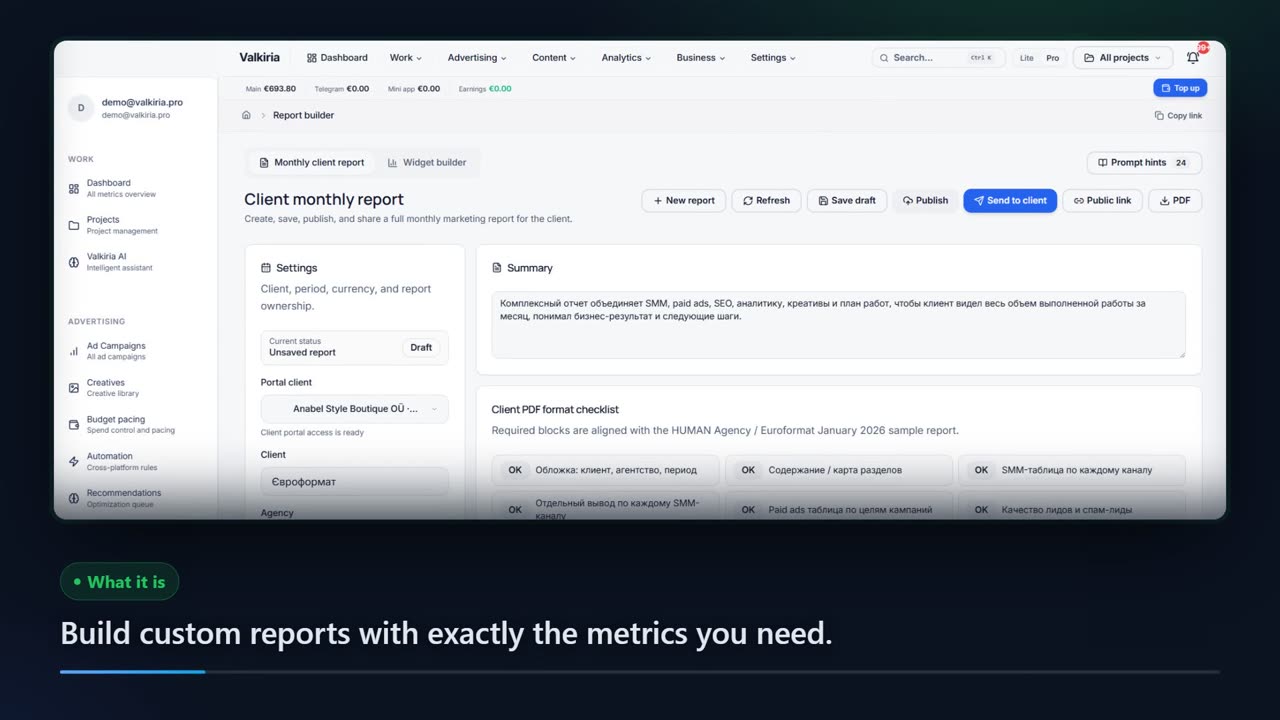
- 03Draft client reports
What you get
- Client portal
- Branded report
- Priority list
Run every client from one workspace and hand over reports that look like your brand
Projects, teams and permissions keep each client separate while you see the whole book.
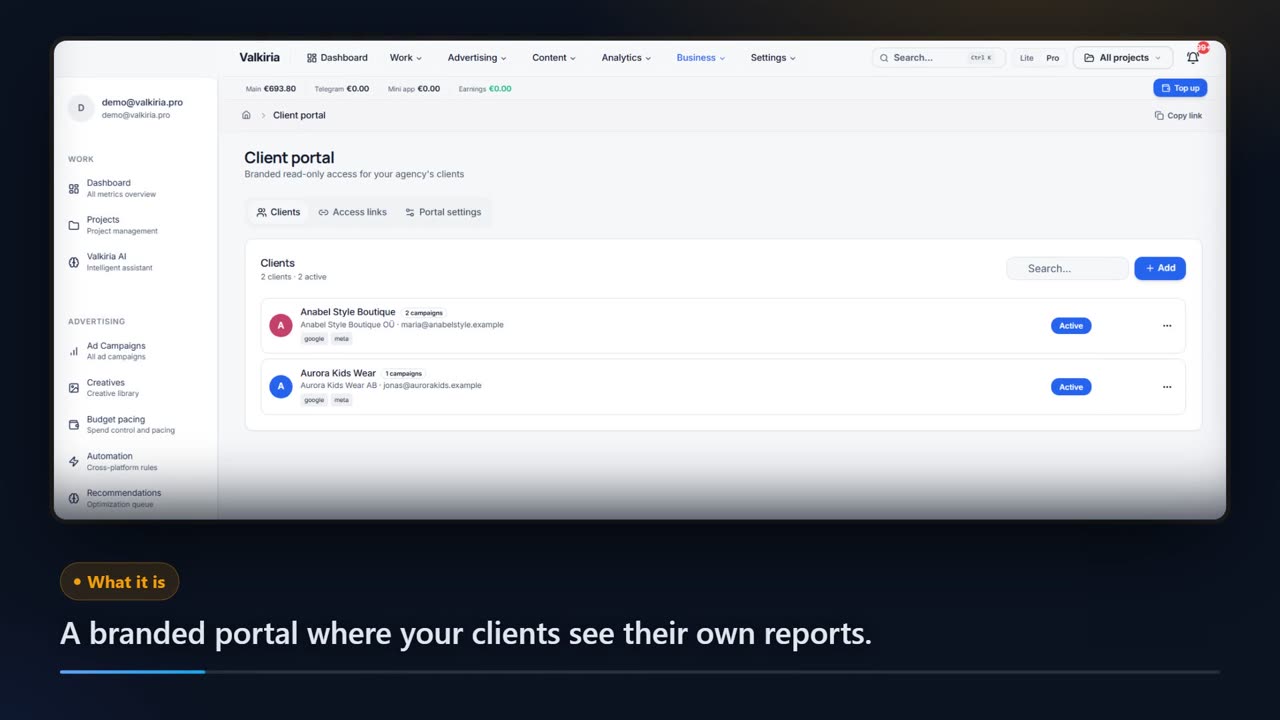
Branded reports and a client portal built from live account data, scheduled when you need them.
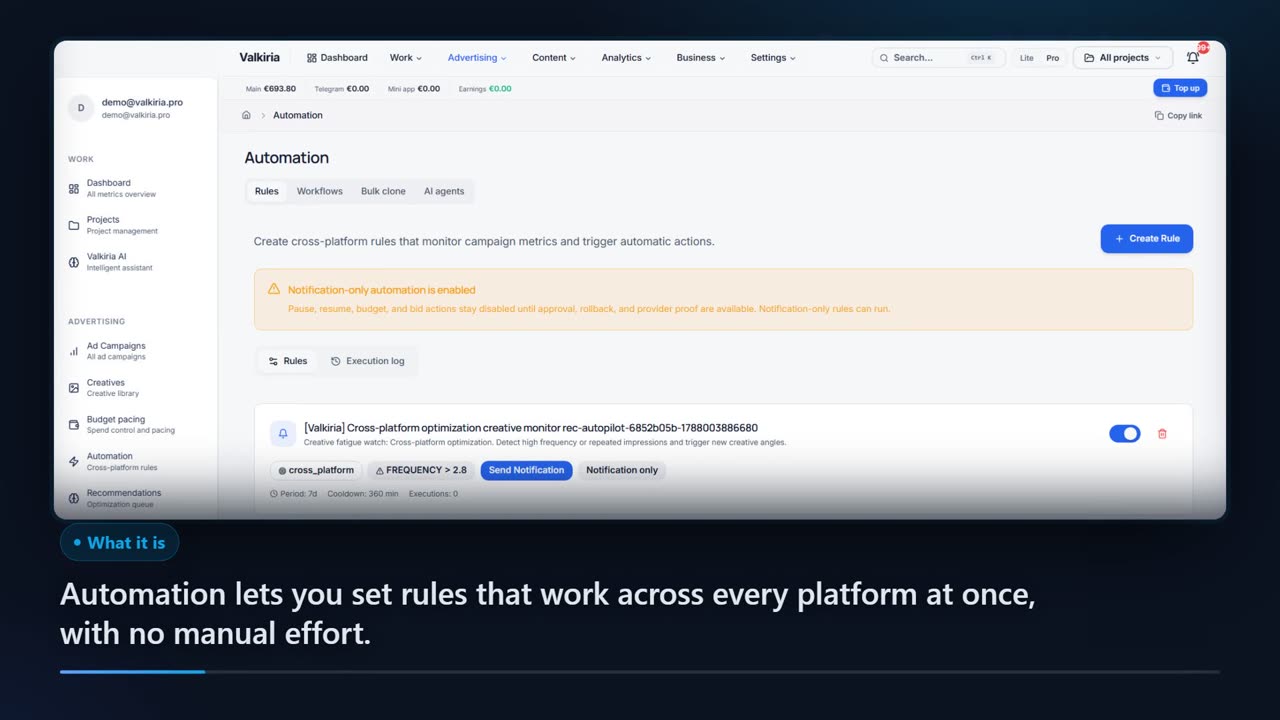
Automation rules watch spend, CTR and CPA and alert you before a budget burns.
Modules that do the work
05FAQ
Questions about the workflow builder
06See also
All modulesStart now
Build your first workflow today
A draft takes a minute, runs under the Test button, and only goes live when you decide. Until then it does not send a single email.